
S Note is a fantastic note-taking app. It boasts a wealth of features, including handwriting and drawing, multimedia insertion, and note categorization, making it a versatile tool for all users. With S Note, you can sync your notes across multiple devices using your Samsung/Evernote account, giving you easy access to your notes anytime, anywhere. Its customization options allow you to personalize your notes by inserting charts, sketches, images, voice notes, and setting custom backgrounds. Furthermore, the app supports interactive multimedia features and allows you to draw and write using the S Pen.
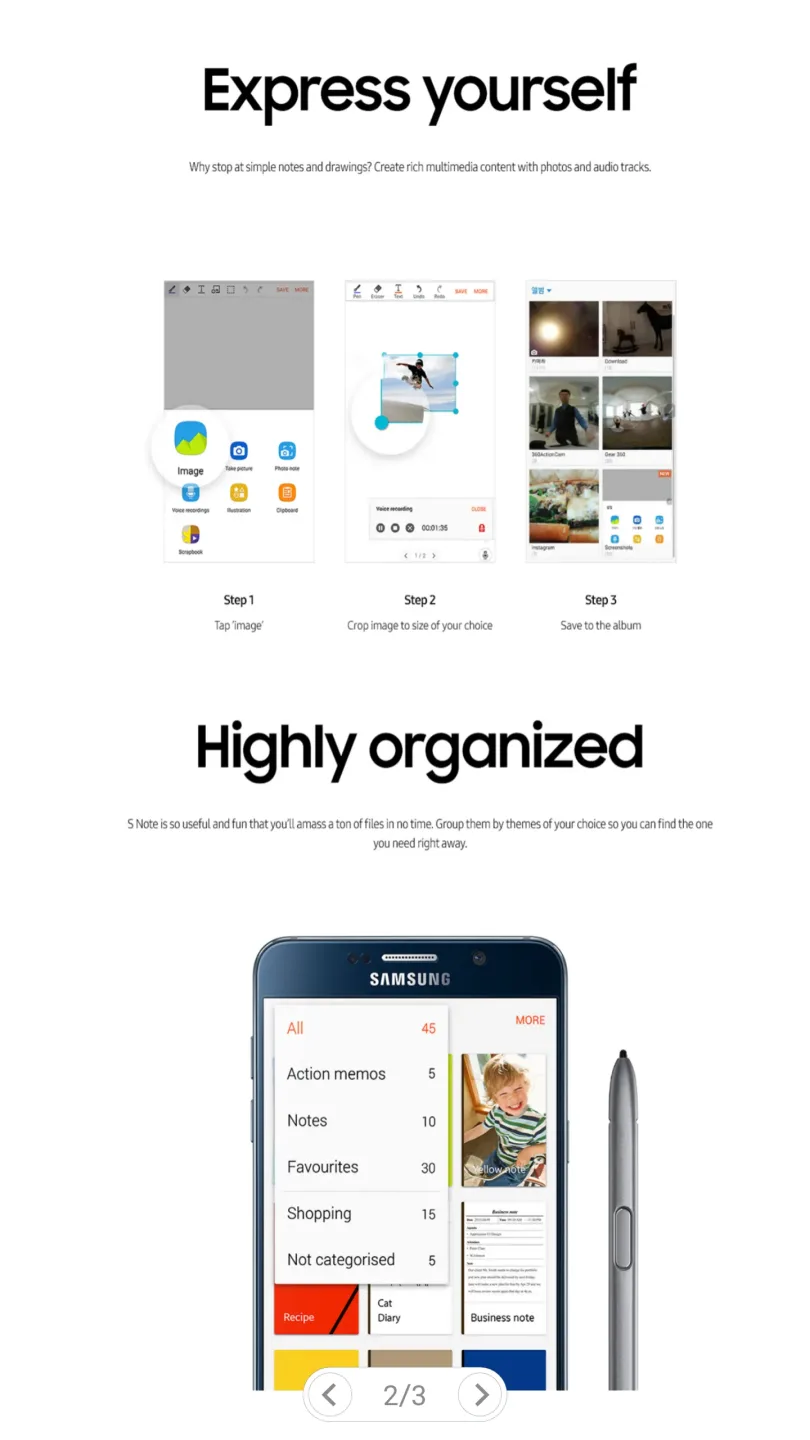
Highlights:
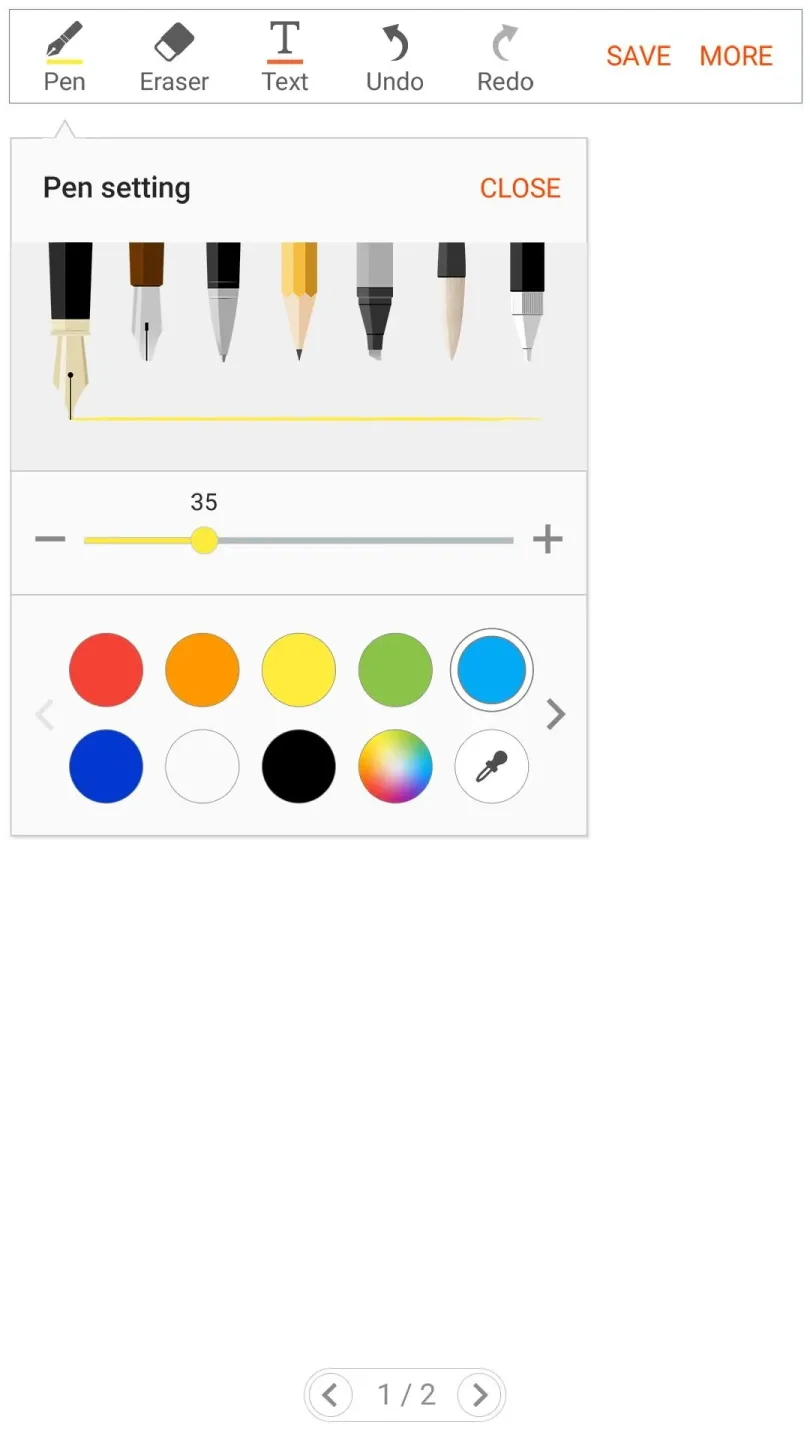
Freehand writing and drawing using S Pen or Finger, with various pre-defined pens and styles
Insert charts, sketches, pictures, voice notes and set custom background in notes
Supports up to 500 pages in a single note
Supports searching of text(handwritten and keypad input) with different filters
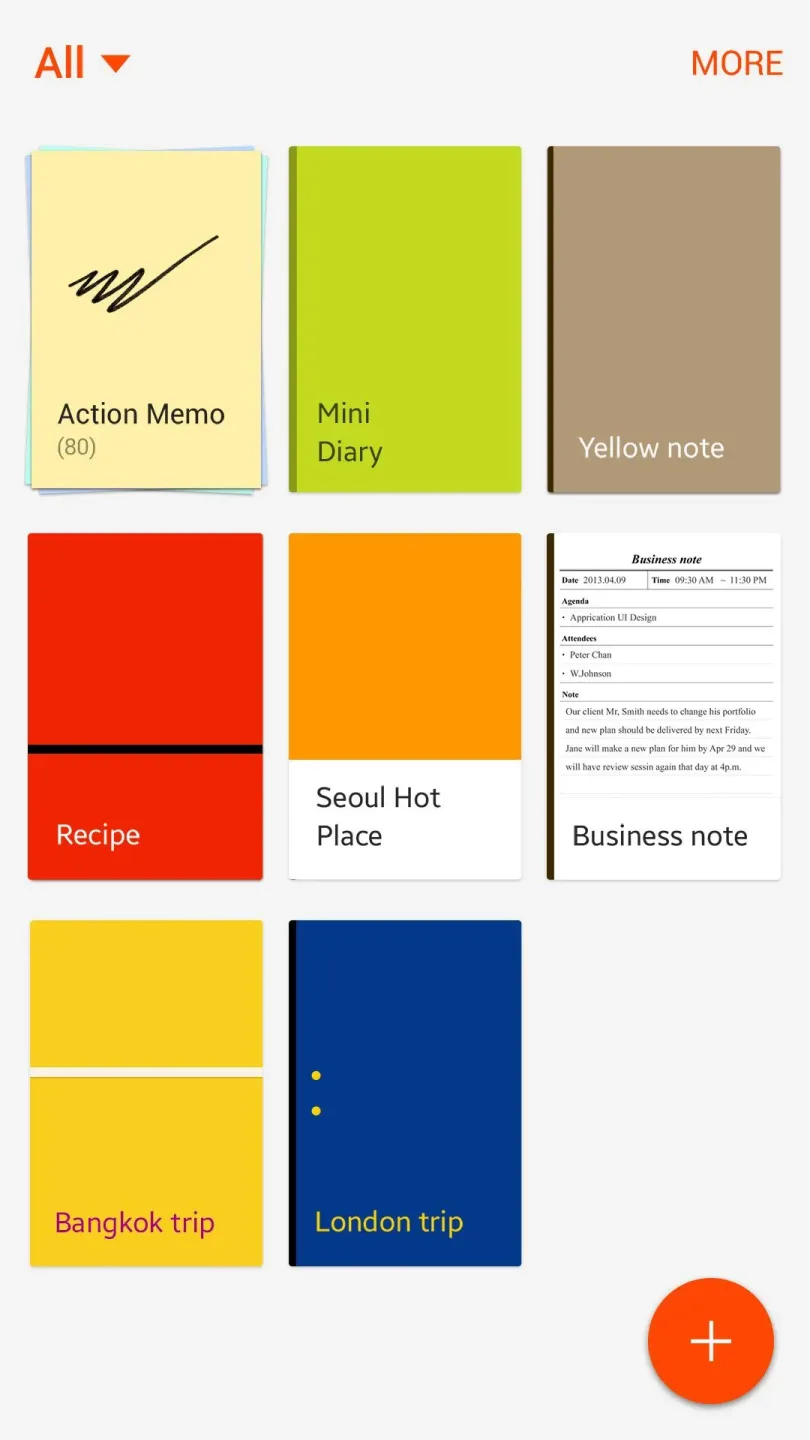
Categorization of notes
Ability to print, export and share note as spd/image/pdf/text file
Import and edit pdf files as notes
Sync notes between multiple devices using Samsung/Evernote account
Features:
Create, edit and insert charts into S Note
Supports different charts - Line, Bar, Pie and Table
Customize your chart using datasets, colors for datasets and items and units
Preview charts before saving
Export chart to Excel(.xls), PDF(.pdf) and Image(.jpg) file formats
Copy and Paste numeric data to create charts
Change handwriting recognition language for dataset and item names
Tips for Users:
Create New Notes
S Notes can not only create plain text notes, but also notes with photos, audio files and even videos.
Locking Notes
Create a password, then tap the note you want to lock. Password Lock note : Protect your notes with passcode
Adding text - S Notes
Use the Rich text toolbar to edit the style of the text!
Add Handwriting
Handwritten text can be recognised. You can also use handwriting to search for keywords in notes. You can easy to create drawings also!
FAQs:
Can I use S Note on devices that do not support S Pen?
Yes, you can still use S Note on devices without S Pen, but some features that depend on S Pen may not be available.
What permissions does S Note require?
S Note requires storage permission to access files, and optional permissions for camera, microphone, location, and calendar for additional functionalities.
How can I create charts in S Note?
You can use the Easy chart feature, available only on Galaxy Note series devices, to create and insert different types of charts into your notes.
Conclusion:
If you want to add images, you can draw and save an image on the page. You can also use the built-in functions to change the text's font, color, and style. S Note is a free app with no ads or in-app purchases. You can use it to create lists, jottings, and notations.