

Send Files to TV is an outstanding file transfer utility that helps users easily transfer files across devices, simplifying complex workflows with its convenient and powerful transfer features. This application presents a lightweight yet feature-rich and powerful file transfer assistant for a wide user base. Users can experience an intuitive interface design, enjoy local private transfers without a network, and experience cross-platform transfer services supporting multiple devices. The application offers users rich customizable transfer settings, making file sharing easier.
Click to load YouTube / 点击加载视频
YouTube ↗Attractive Features of Send files to TV
Local Private Transfer Service Without a Network
Send files to your TV using local Wi-Fi or a wired LAN, sending or receiving files without an internet connection. This helps keep files within your network and is faster than Bluetooth for large videos and batch transfers of multiple files.
Cross-Platform Support for Phones, TVs, and Computers
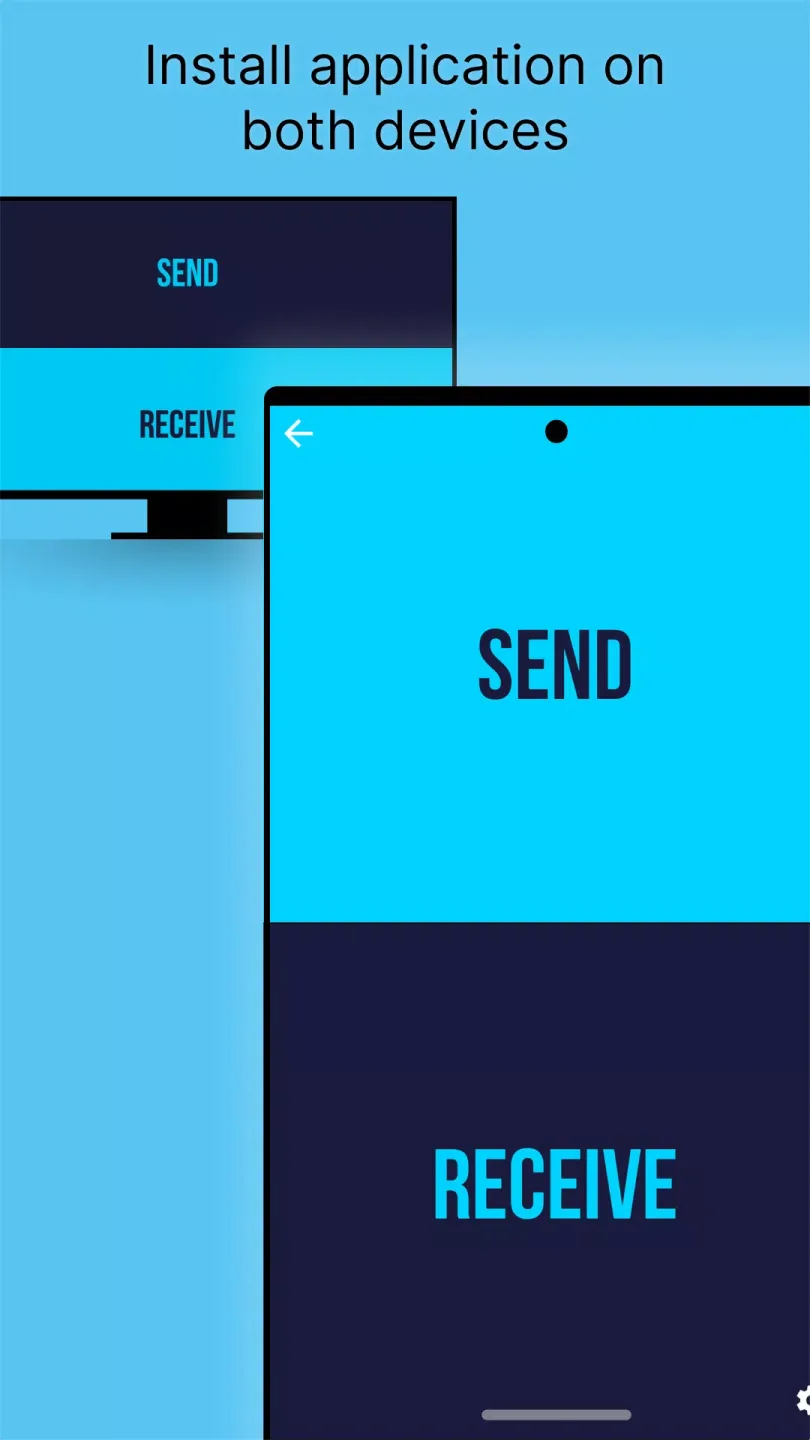
SFTTV runs on Android phones and tablets, Android TV and Google TV, as well as desktop systems, and is supported by companion apps for Windows, macOS, and Linux. Install SFTTV on both your phone and computer to transfer content between them.
Automatic Device Discovery and One-Click Sending
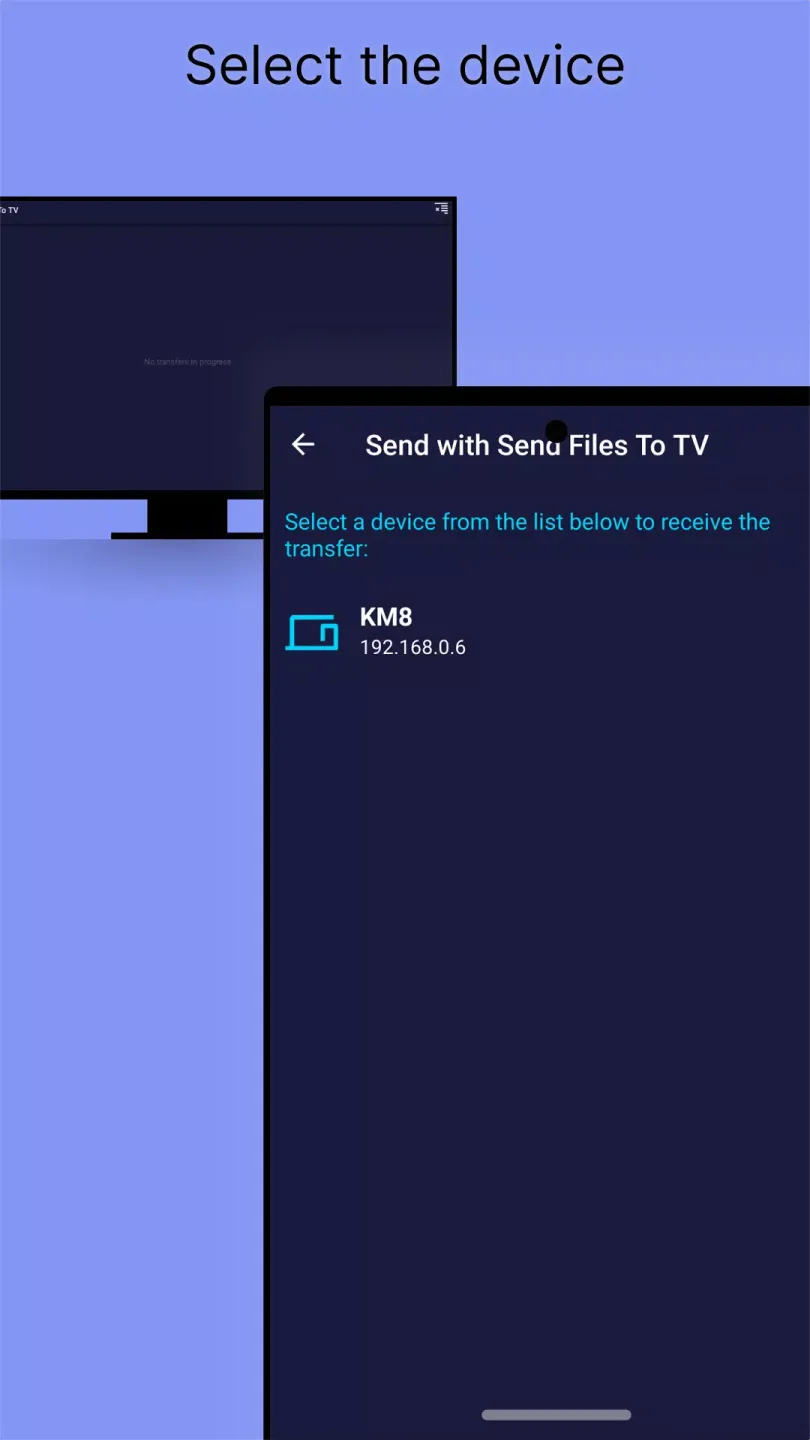
When all devices are connected to the same network and the app is open, "Send Files to TV" will automatically list available target devices. Simply select the device and confirm to start the transfer; the connection process will complete automatically.
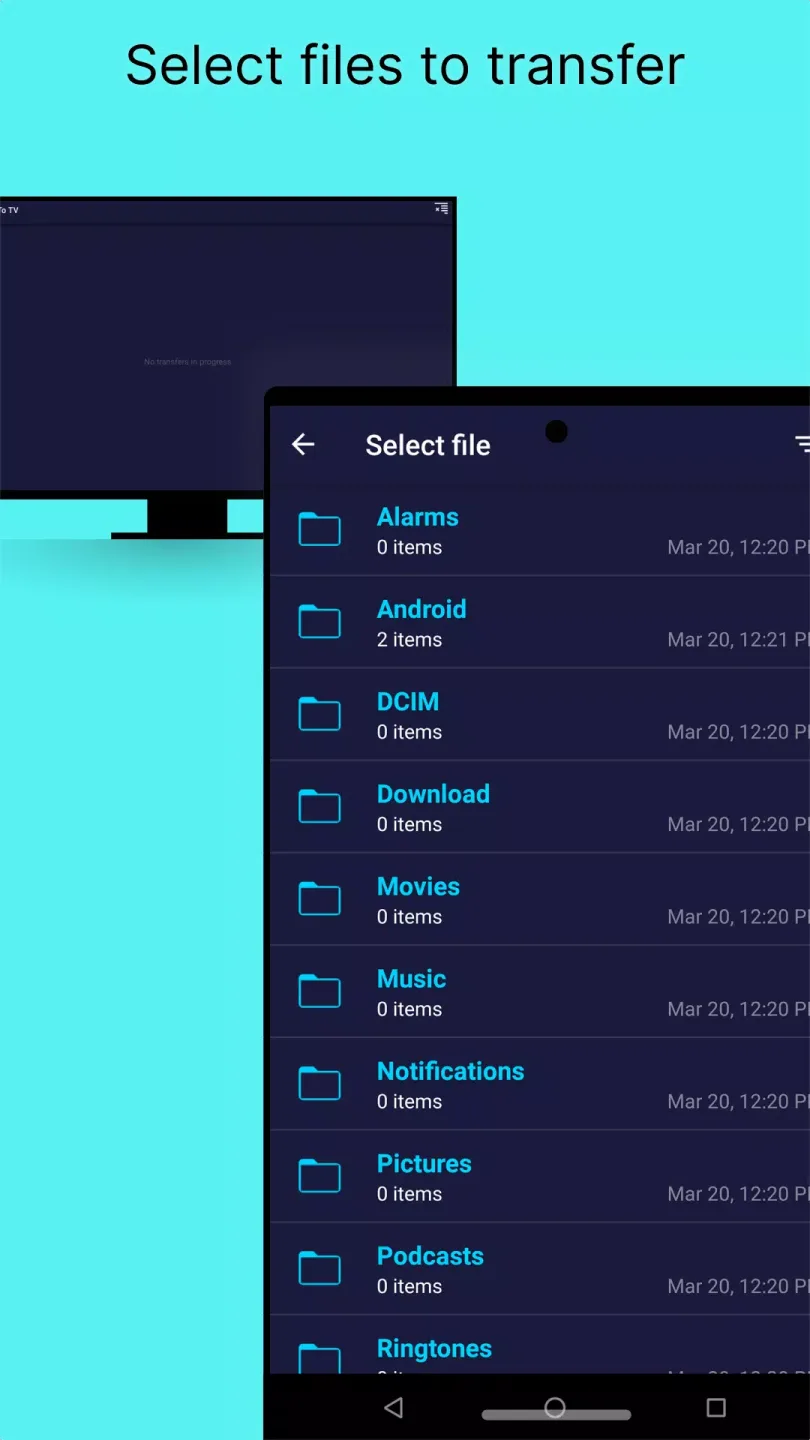
Any File Type Supported for Multiple Selection
You can send videos, photos, music, APK files, and documents, and you can select multiple files at once. If you need to move an entire folder, compress it first, or select the files within the folder to send all at once.
Helpful Tips of Send files to TV
Both devices need to have SFTTV installed and enabled for automatic discovery. They must be connected to the same Wi-Fi or LAN and cannot be isolated using a guest network. If you are transferring data with a PC, ensure your firewall allows local traffic to SFTTV and try disabling any VPNs that might be blocking device discovery.
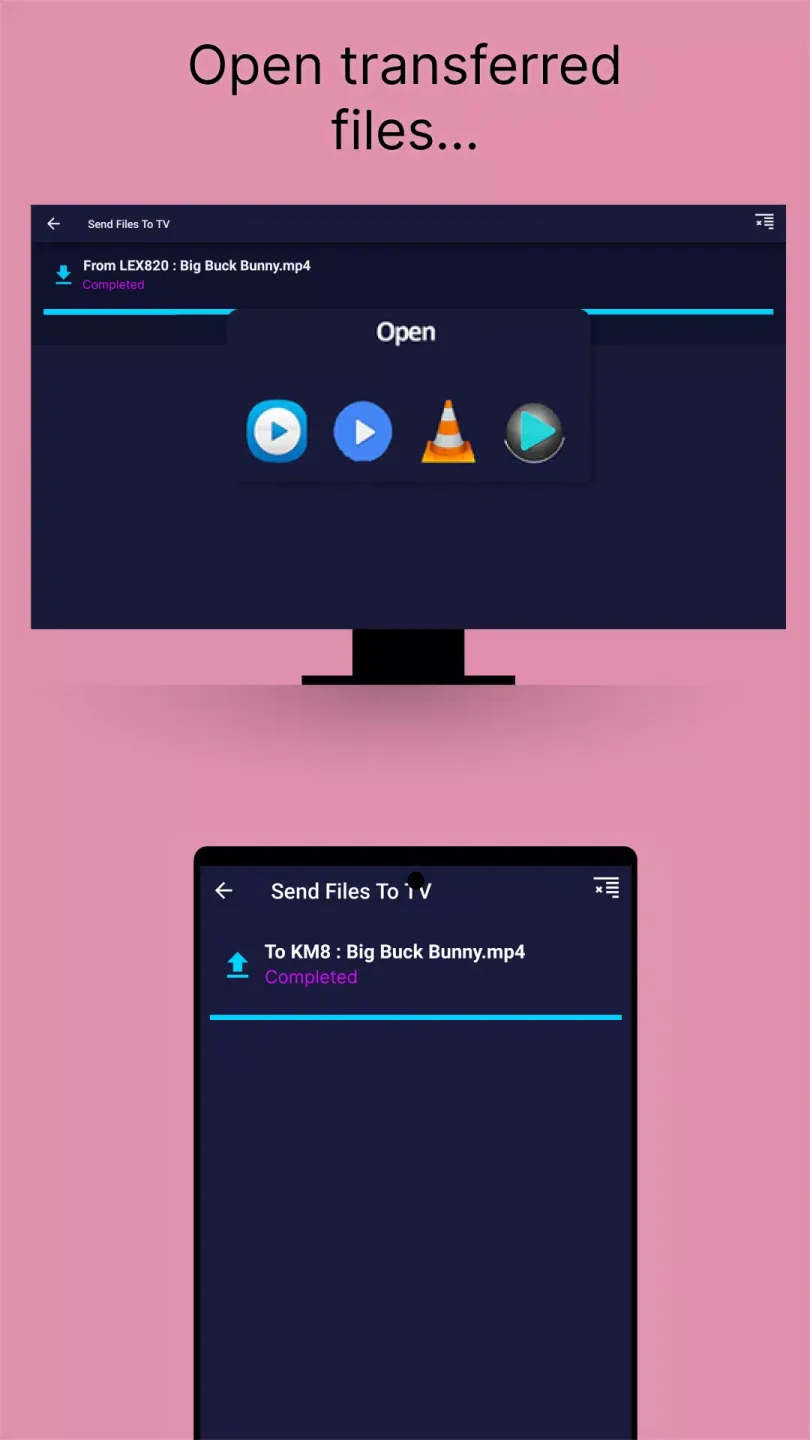
To change or find the receiving folder on your TV, open SFTTV on your TV, go to "Settings," and then select "Receiving Folder" to view or select a new path. On your mobile device, open SFTTV, tap "Settings," and then tap "Save Location" to select where to store the files. This makes it easy to find the files quickly after the transfer is complete. If your goal is to move an entire directory, the app itself doesn't support sending folders directly. You can compress the folder into a ZIP file before sending, or select all files in the folder to send together. This method helps maintain the file structure when unzipping the ZIP file on your TV or computer.
Frequently Asked Questions of Send files to TV
Does sending files to a TV require an internet connection?
No, "Send Files to TV" uses local Wi-Fi or LAN and does not require an internet connection to transfer files. You only need to ensure that both devices are connected to the same network and that the app is open.
Why isn't my device appearing in the "Send Files to TV" list?
The most common reasons are that the two devices are not on the same network, the app is not open on one of the devices, or a VPN or firewall is blocking device discovery. Ensure that both devices are running SFTTV and connected to the same router, then temporarily disable the VPN or allow SFTTV through your computer's firewall.
Where are files received on the TV saved?
By default, "Send Files to TV" saves files to the receiving folder set in the TV app. On your TV, open "Send Files to TV," go to "Settings," and then select "Receiving Folder" to view or change the path so you can always know where your transferred files are stored.
Pros and Cons of Send files to TV
Pros
Fast and secure transfers
No internet connection required
Easy to use
Seamless device connectivity
Cons
No deletion option
Intrusive payment prompts
Final Verdict
The Send Files to TV app is the perfect solution for all your file transfer needs. Seamlessly transfer files between smartphones, desktops, and smart TVs without a stable internet connection. Data transfer is fast and secure as long as devices are connected to the same local network.