

Limbo Emulator is a desktop system emulator designed for mobile devices. With the help of tutorials, users can easily run streamlined versions of Linux, Windows, and other operating systems on their phones, allowing them to freely install and run various software and games to meet their personalized needs. The software boasts strong compatibility, running on multiple brands of mobile devices, and supports virtual keyboards and touch controls for a comfortable input experience. During use, there will be no ads or pop-ups to interrupt the user experience.
Click to load YouTube / 点击加载视频
YouTube ↗Features of Limbo Emulator:
User-friendly Interface: The application features an intuitive and straightforward interface that makes setting up and configuring your virtual machine a breeze. Even if you're new to emulation, Limbo provides clear guidance to get you started quickly.
Multiple OS Support: Limbo supports a wide range of operating systems, including Windows 95, 98, XP, various flavors of Linux, and even lightweight versions perfect for emulation. This extensive compatibility opens up numerous options for users looking to run different environments.
Customizable Virtual Hardware: Tailor your virtual machine to your exact specifications by adjusting CPU cores, RAM, and storage. Limbo allows you to configure hardware settings to optimize performance based on your Android device's capabilities.
Save and Load States: Quickly save your progress and load it again without hassle. This feature is especially useful for users who want to halt their sessions and resume later without losing their work.
Fast Performance: Utilizing the power of QEMU, Limbo delivers impressive performance for an emulator running on mobile devices. While the speed may not match that of a native PC environment, users will find it sufficient for various tasks and applications.
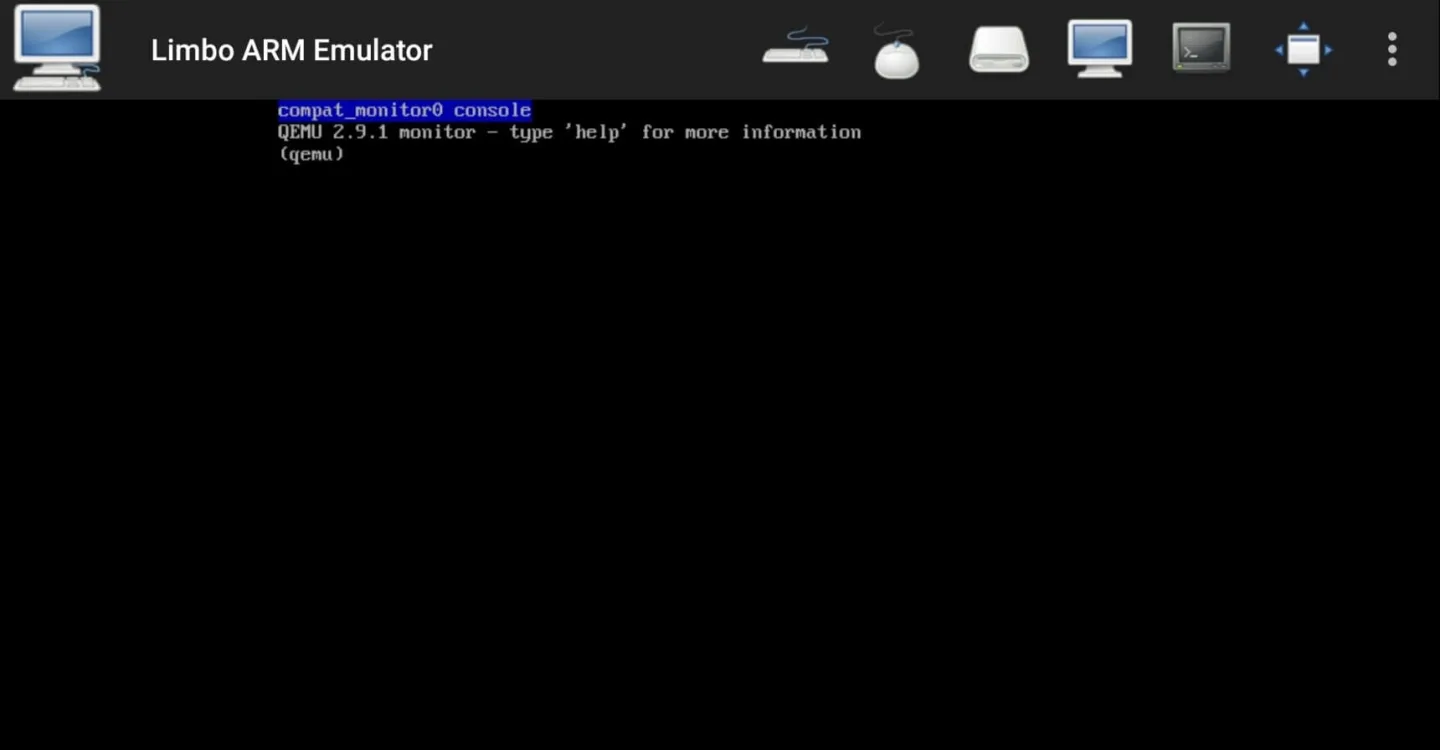
Functions of Limbo Emulator:
Versatile System Choices: Choose from a variety of systems like KolibriOS, FreeDOS, and more to run seamlessly on an x86 architecture.
Customizable Emulation: Adjust RAM, set the number of emulated cores, pick your CPU type, and even mount hard-drive or CD-ROM images. It’s techies’ heaven!
Visual and Audio Options: Select from different graphics, network, and audio card types for a tailored computing experience.
Seamless Access: Access your emulated desktop using the built-in VNC viewer or SDL mode, or connect via external VNC options. With subtle BlueStacks support, enjoy smooth multitasking.
Smooth Environment: The Emulator doesn’t have any adverts, or it doesn’t promote any external links on the app. The environment will always remain clean for the users to get the realistic experience of using a desktop.
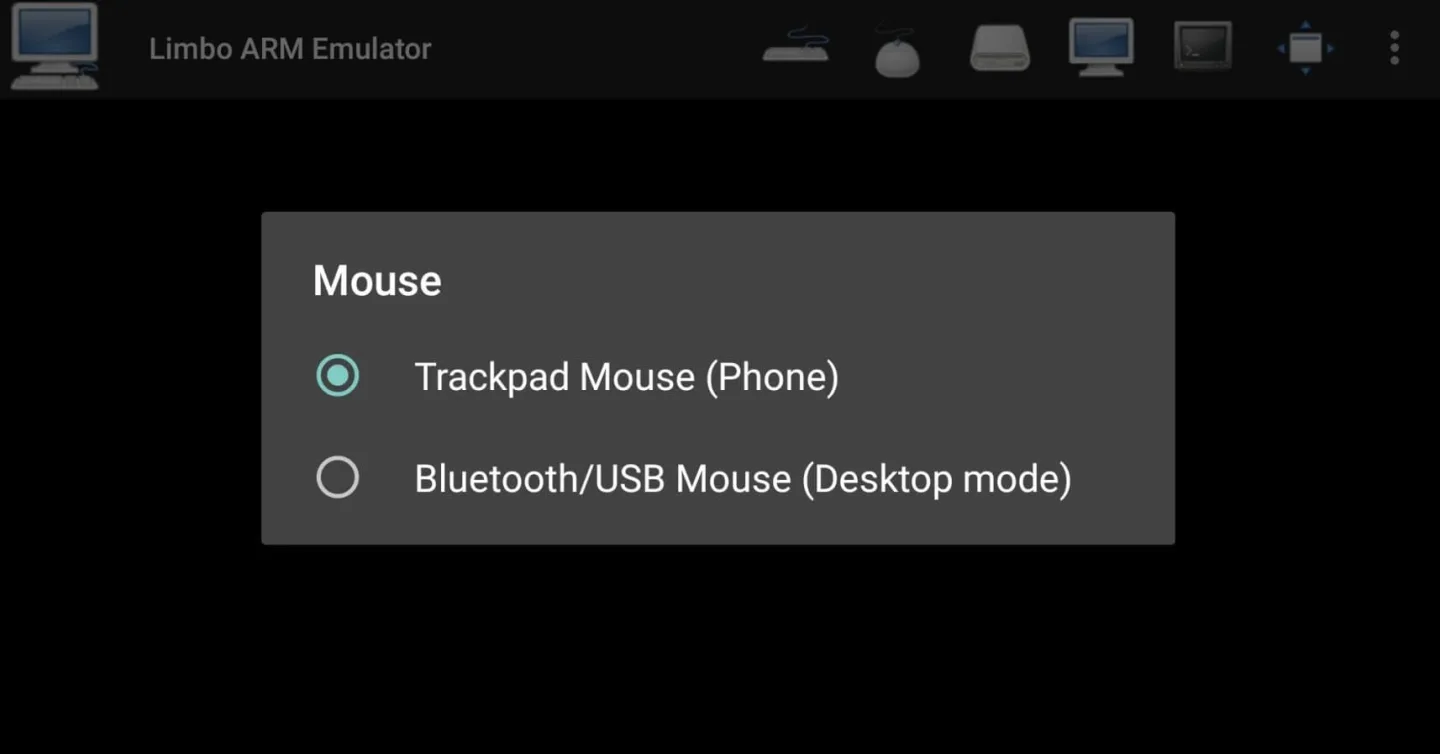
Tutorials of Limbo Emulator:
This is a quick start guide that will get you up and running with a virtual machine.
Create the virtual Machine
To create a virtual machine press on the dropdown list on the top right corner labeled "Machine" and select "New".
Type a name that best describes your virtual machine.
You will be prompted with a selection of Operating Systems that when you click it will take you to an online installation guide with links to ISO CDROM installation media and/or virtual hard disk images. If you have your own disk images you want to install choose "Custom" instead.
The main screen is divided in sections so to start press on the Board section and select the amount of RAM that your virtual machine will use. You can find more information and recommended value in the operating system tutorials but usually 256 MB is fine for most of the supported Operating Systems.
You can also choose the cpu type you want, if it's a 64bit operating system make sure you provide the right CPU that supports it.
Choose the disks from the filesystem and the ISO files if you have one.
The rest of the options are optional if you want you can read more about each section here.
Start the virtual Machine
You can start your virtual machine by pressing on the play button. You can pause it (save state to disk) by pressing the pause button. If you start the virtual machine in SDL interface you can find similar menus that do the same within the SDL screen from the main menu.
Resume the virtual Machine
To resume a virtual machine from a previous saved state press on the play button.
If for some reason the operating system fails to boot exit and press on "Discard VM State" from the menu. This will delete the state and you can reboot your machine.
Final Thoughts:
Overall, Limbo Emulator suits developers, IT students, and curious users who want to experiment with desktop systems in a mobile-friendly setup. It’s a niche but practical tool for learning, testing, or nostalgic computing on Android.