
SimplyScan is a productivity app designed for Android devices. It is easy to use, allowing you to scan documents and view them directly on your smartphone screen. The app offers comprehensive privacy protection, so you don't need to worry about document leaks. It can scan existing image-based documents using the camera, delivering results comparable to those of a physical scanner. Documents can be uploaded to the cloud, and the app supports exporting files in various formats as well as online file previewing. For best results, users should scan in a well-lit area, flatten any curled or folded corners, and avoid shadows.
How to Use
The way Simple Scanner works is very easy, thanks in large part to the design of the app's interface. First of all, you can scan any document you want, and the app will show it to you on your smartphone's screen. You can also save all your scans to view them whenever you want.
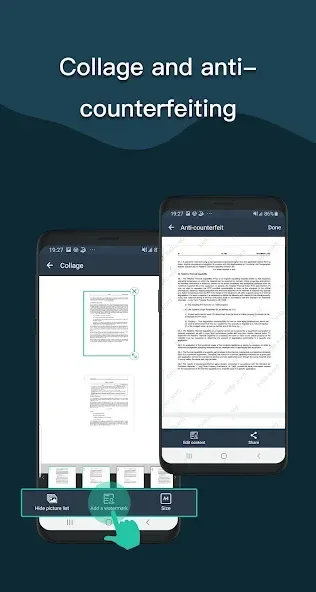
Simple Scanner doesn't just make a simple photo of the document. Instead, the app changes the image to make it look as much like a real scan as possible. And with the built-in editor, you can further adjust the parameters to modify the final result. This app also offers complete privacy, so you don't have to worry about the confidentiality of your documents.
Features
Camera scanner
Scan your document using your camera or an existing image on your device
Perspective cropping
Drag to define the corners of the document, and allow the app to take care of the rest
Image effects
Use presets, or simply adjust the effects as you need them to ensure the document looks just like it was scanned with a physical scanner
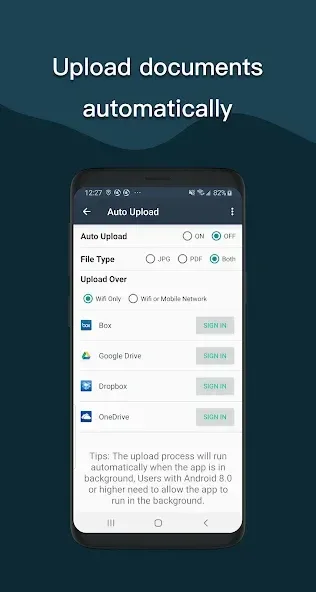
Upload to the cloud!
When exporting, simply choose the Dropbox app, Drive app, or another cloud app to add it to your cloud
Export to multiple file formats
Choose to export as a PDF document, photo, or ZIP file of photo for multi-page documents
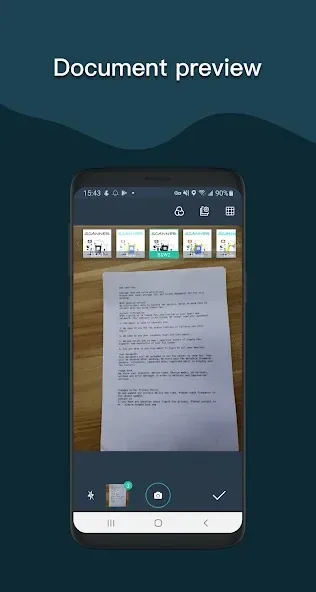
Document preview
View the document and zoom in on pages right from the app
Multiple PDF settings
Choose the PDF page shape, margins, orientation, and quality of your PDF document
Tips
Find a bright, well-lit location to place your paper document.
Make sure the document is flat, not curved or bent.
Avoid having shadows over the document.
Make sure your phone is positioned parallel to the document.
Hold the phone as close as possible to the document so that all edges of the document are just barely visible inside the camera frame.
Hold very still to take the photo.
User comments
Been a favorite for double digit years! only, be careful with the ad pop ups. Check the screen THOROUGHLY before taping anything. Scan anything. Save in photo mode of document mode in many different black/white and color modes. Multiple ways to save .pdf, .jpg, etc. Share to nearly everywhere or upload to your cloud service. It really is a handy app
So far I like it. I downloaded like 8 of these apps to try, and this one is the only one that didn't immediately demand payment as soon as I opened it. All the others immediately had a subscribe screen, and if you hit x, an ad that was over the whole screen. This one has a non intrusive banner ad.
the free version I'm using does have ads, but not every time you open the app nor several, just one. I'm thinking of getting the remove ads subscription, though, as it's really affordable.
Summarize
By choosing to download Simple Scanner, users can leverage the full potential of their mobile devices for document management, streamlining their processes while maintaining high standards of quality and security. With features designed to accommodate various scanning requirements, Simple Scanner stands out as a practical choice for those in need of a reliable PDF scanning solution.