

Musi is a free and user-friendly music player. It boasts a powerful search function, allowing users to easily find their favorite music by entering the song title, album name, or artist. It also includes built-in music editing tools, enabling users to adjust audio and sound effects with an equalizer for a more comfortable listening experience. Users can add their favorite songs to playlists at any time for convenient listening or sharing with friends. The software also supports connection to various smart devices, allowing users to play their favorite music on car speakers, headphones, and even smartwatches.
Click to load YouTube / 点击加载视频
YouTube ↗Features of Musi:
AirPlay Enabled: Stream music directly to your AirPlay devices, bringing your listening experience to the next level.
Create Personal Playlists: Craft your own music lists, ensuring your favorite tunes are always a tap away.
Music Sharing: Easily share your beloved tracks with friends, making music a collective experience.
Search System: Utilize an intuitive search function to quickly find and organize your favorite music.
Discover New Music: Get recommendations tailored to your taste, keeping your playlist fresh and exciting.
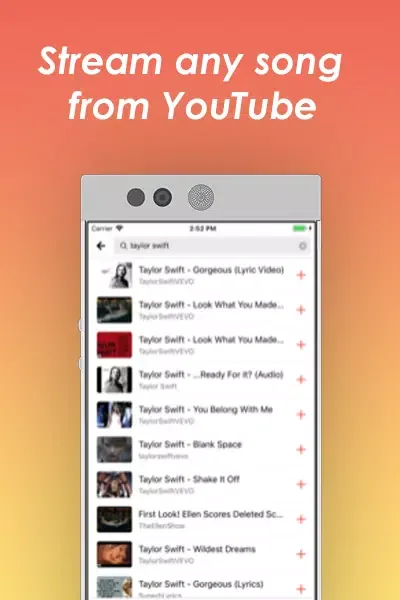
Highlights of Musi:
Your Songs, Anytime, Anywhere: Enjoy your favorite playlists, artists, & albums without compromise. Our free music player ensures high-quality song streaming wherever you go.Access your curated songs collection anywhere.Experience uninterrupted playback.
Ambient Sounds & Mood-Based Playlists: Enhance any moment with our carefully curated selection of ambient sounds & mood-based playlists.Find the perfect playlist for any mood or activity.Unwind with relaxing nature sounds & meditation tracks.
Floating popup player: Musi can keep a small player window on top of other apps. You can play, pause, or skip without switching screens, which helps when chatting or browsing. The popup can be moved so it does not cover important parts of the display, giving you access to controls while you multitask.
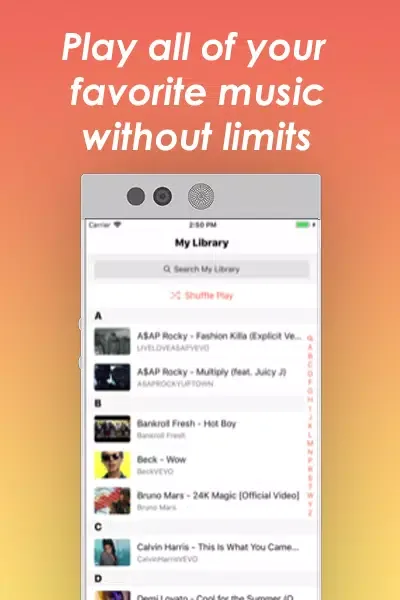
Filters for faster finds: You can apply filters to narrow what you see in your library. Sort or filter by basic details like title or artist to reach a track faster. This becomes useful when your collection grows and you need to find the right song in less time.
Simple playback controls: Musi keeps the core player straightforward. You can start or stop a track, move to the next or previous song, and scrub through a timeline to jump to a specific moment. These essentials make it easy to manage listening with one hand.

User Reviews of Musi:
This is my favorite app EVER! I highly recommend this app! I have told multiple people about it and they all love it! Must download!
Musi is great! You can hear your favorite songs and even watch YouTube videos on it! Try it out!!!!!
Okay so I like Musi way more than Spotify because you can’t even hear the ads. It’s the best, why pay for Spotify when you can use Musi that has silent ads.
Never leave reviews for any app, but been using Musi almost 3 years and they’ve never switched up! Awesome Music app.
Think I've tried just about every music app out there and this trumps all of them. No interrupted music, just pure consistent vibes.
Perfect, literallyI’m a guy that plays lots of and listens to even more music. So when an app like this rolls by, I take a lot of time to trust it. There have been many apps in the past that have tried to be like this one, but they always fall short because of a few things bur this app has it all.
FAQs of Musi:
Can I download or cache my music?
Musi does not allow downloading or caching of videos at this time. In order to play videos on Musi, you must have a working internet connection.
Does Musi use my data?
Musi will use data when playing tracks on a cellular connection. If you are not connected to WiFi and are using Musi, it will be using your data. Musi uses 10-15mb of data per track played, on average.
How can I adjust playback speed?
Tap the "Settings" button on the bottom left side of the Musi video player. You may then adjust the playback speed to 1x, 1.5x, 2x and more.
How can I enable crossfade?
Tap the "Settings" button on the bottom left side of the Musi video player. You may then adjust the crossfade duration by sliding on the slider.
How can I create a new playlist?
You can create a new playlist by visiting the Playlists tab and tapping the "+" button. From there, you can enter the name for your new playlist and tap "Create".
How can I delete a playlist?
You can delete a playlist by opening the playlist and tapping the three dots on the top right side of the playlist. From there, tap "Delete Playlist".
Conclusion:
It's easy to say that utilizing Musi is uncomplicated and practical. The app's user-friendly interface and straightforward navigation make it accessible to a variety of users. All in all, the experience of using the app is positive, and its convenient features and large music library make it a great option for anyone looking for a simple and easy-to-use music streaming app.