
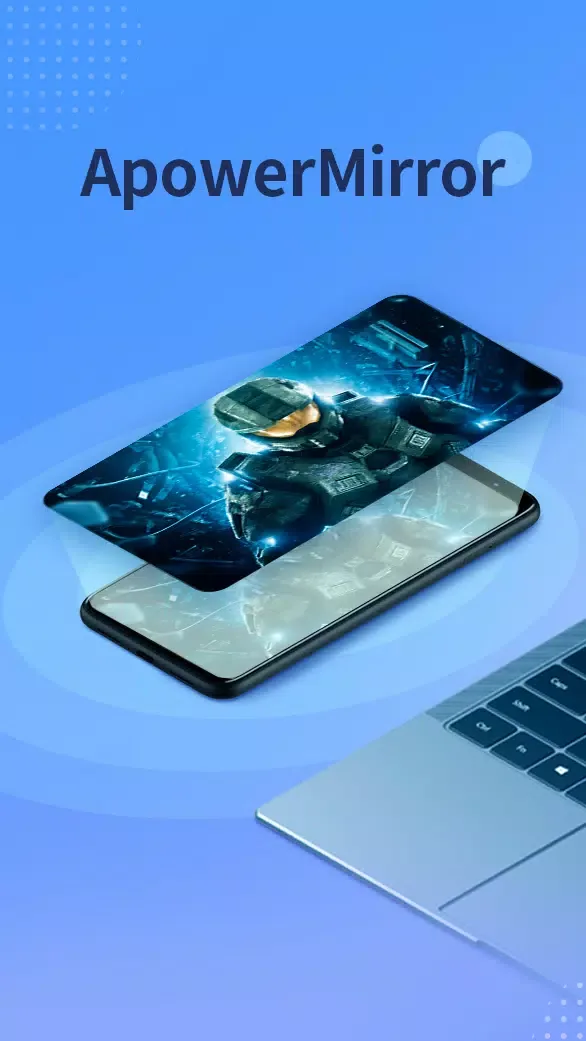
ApowerMirror is a convenient screen mirroring software that allows you to easily project your phone screen onto your computer or TV. Enjoy watching movies or playing games on a larger screen for a better experience. The software provides detailed tutorials and is compatible with various brands of mobile phones and computers, making screen mirroring a breeze. ApowerMirror will continue to be updated, becoming compatible with more device brands and launching more screen sharing tools, bringing users more novelty and fun.
Click to load YouTube / 点击加载视频
YouTube ↗Features of ApowerMirror:
ApowerMirror is a revolutionary Android app that allows users to mirror their smartphone or tablet screen on any device with an HDMI port. This powerful tool allows you to easily share your phone’s content across multiple devices and platforms in real-time without cables or extra hardware. Whether streaming movies from Netflix, playing games on Xbox One or sharing photos with friends over Facebook Messenger – ApowerMirror makes it easy!
Mirror your Android device to another one wirelessly or with a USB cable.
Stream media from mobile devices, computers and laptops to a larger screen for a better viewing experience.
Record the phone’s display on the computer in real time without lag.
Take screenshots of your smartphone’s screen easily with just one click.
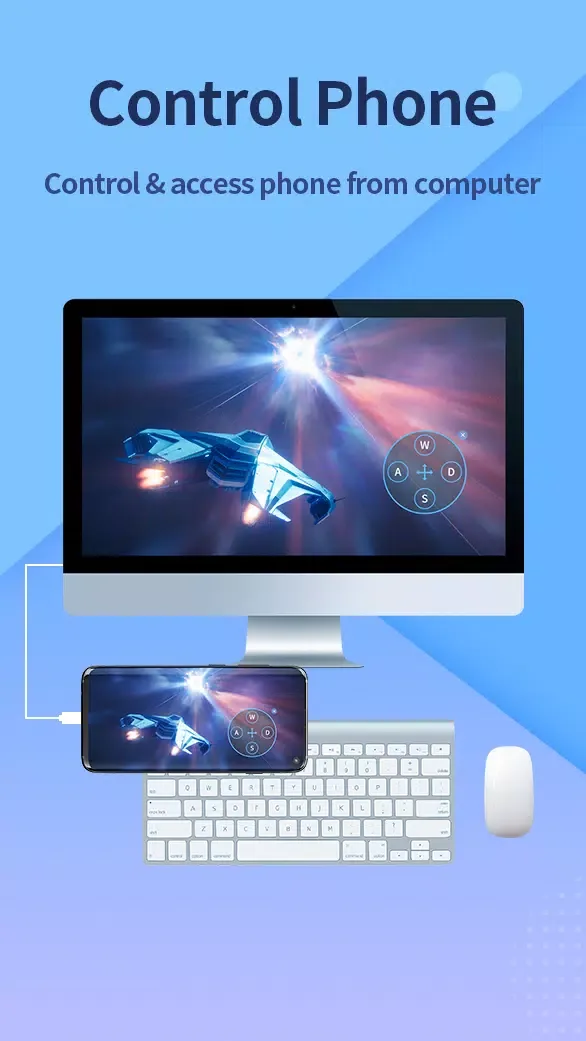
Control Android phones/tablets using a mouse & keyboard connected to a PC via a USB cable or wireless connection (Bluetooth).
Share files between two devices quickly by dragging and dropping over Wi-Fi network connections.
Support multiple platforms such as Windows, macOS, iOS & Chrome OS etc.
Compatible with most popular brands like Samsung Galaxy S8/S9+, HTC U11+, LG G6 /G7 ThinQ etc.
Functions of ApowerMirror:
Mirror&Control Phone from Phone: ApowerMirror is also a good screen mirroring app to mirror phone to phone or tablet. You can also share your screen with another phone using ApowerMirror to watch videos and movies with your friends and share your files with your audience easily.
Accessibility APl: ApowerMirror requires "Accessibility" permission to help you use the reverse control feature. This feature allows you to better help your family and friends debug their phones, and in corporate meetings, you can control your phone for demonstrations efficiently. Denying the accessibility permission will prevent you from using the reverse control-related functions, and will not affect the use of other features.
Cast Phone to TV: This screencasting app also does well in screen mirroring Android to TV. Whether you want to stream movies, watch videos, share photos or play games right on the big screen, it just takes a few taps to mirror your phone's display to your TV. It supports TVs like Sony TV, LG TV, Philips TV, Sharp TV, Hisense TV, Xiaomi MI TV, and other TVs running Android OS.
AirCast - Screen Mirror Between Different Networks: This advanced feature allows screen mirroring between devices that cannot be connected to the same network. If you use this feature, even if you are located in different places and on different network connections, you can share the screen with each other. This can be used to mirror phone to phone, cast phone to PC, and stream PC to phone.
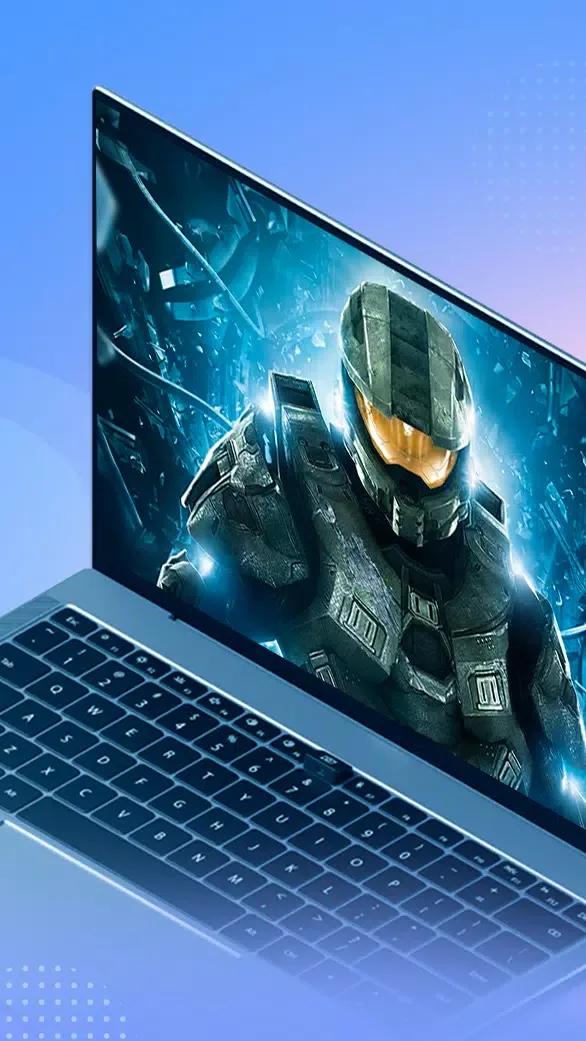
Control Android from PC/Mac: When screen mirroring Android to PC/Mac, you can take full control of the screen with your mouse and keyboard. Therefore, you are able to share PPT to your colleagues, enjoy movies on a bigger screen, or play phone games such as Mobile Legends, PUBG Mobile, Fortnite, Minecraft, and other games on the computer.
How to Use ApowerMirror:
Otherwise, if you are searching for a way to cast the Chrome browser from an iPhone or Android to a Smart TV, then you need to explore this part. Casting content from your phone’s Chrome browser to a Smart TV is easy. However, there are a few things you need to check to make this possible on your end. First, ensure that your Smart TV has a built-in AirPlay 2, Chromecast, or Miracast. Lastly, you also need to ensure that your phone supports the screen-casting feature. Now, if your phone and TV check all the boxes, casting Chrome browser from Android phone or an iPhone to TV is possible!
For iPhone users, here are the steps you need to follow:
Connect both your Smart TV and your iPhone to the same Wi-Fi network. Then, head to your iPhone, swipe down from the upper right corner to access the “Control Center”.
Next, tap the “Screen Mirroring” option, select the “TV” from the list that appears, and enter the passcode that appears on your TV if prompted on your phone.
Once your iPhone and TV are successfully connected, head to your iPhone’s Chrome browser and access the content you wish to watch, view, or present on a larger screen. That’s it! That’s how you cast Chrome browser from iPhone to Smart TV.
For Android users, here are the steps you need to follow:
Connect your Android and Smart TV to the same Wi-Fi network. After that, swipe down from the top of the screen on your phone to access the “Quick Settings” panel.
Next, look for “Cast”, “Smart View,” “Screen Mirroring”, or “Wireless Display” option (the name varies by brand) and tap it. After that, wait until your TV appears on the list.
Once your TV appears on the list, tap on it and wait until your Android screen appears on your TV screen. That’s it! That’s how you cast the Chrome browser from an Android phone to a TV.
FAQs of ApowerMirror:
Q: Is the app free to use?
A: The app is free, but you can upgrade to a premium version for additional features.
Q: What devices are compatible with the app?
A: It is compatible with Android and iOS devices and Windows and Mac computers.
Q: Can I use the app without an internet connection?
A: It can work without an internet connection if both devices are on the same Wi-Fi network.
Q: Does the app support screen recording?
A: You can record your screen while mirroring, which is great for creating tutorials or gameplay videos.
Q: How do I use the app to connect my phone to a PC?
A: Download the app on both devices, connect them to the same Wi-Fi, and follow the on-screen instructions to establish a connection.
Final words:
ApowerMirror links two devices on different platforms for easy information sharing and control. What is displayed on the smartphone will be cast to the PC to receive optimal information quality and support multiple viewers. At the same time, the constraints are always clear, as the Android device is often the driver of change and takes control of operations. It becomes a wireless mouse and observes every change on the screen quickly instead of having to constantly look at the PC. Each user will definitely have a way to effectively use the features that this application brings.